




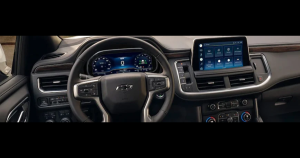
 The advanced Chevy infotainment system in your new Chevy car, truck, or SUV will enhance your driving experience with an array of fantastic features. We’ve gathered some helpful tips on getting things figured out in your new ride – read on for more details!
Create Your Profile
To get started, simply press the user button on the home screen, then follow the link. After reading and accepting the terms, you can enter your Owner Center account’s email address and password. If you don’t have an Owner Center account, enter your email and create a password. Pick a profile image and proceed to assign a key fob. It’s important to note that if you wish to link your profile to your key fob, it should be the only key fob in your Chevy.
Connect Your Smartphone
To connect your smartphone, plug in a USB cable to allow access to Apple CarPlay or Android Auto, directly integrating your phone’s apps onto the infotainment touchscreen. Turn on Bluetooth to discover devices and choose the infotainment system for seamless calls, messaging, and audio streaming.
Personalize Your Home Screen
Personalizing your infotainment system will enhance your experience. Add your most-used functions to the Favorites menu for quick access. Use the settings to explore the range of customization options. For that added personal touch, feel free to rearrange icons or tweak your profile and settings to your heart’s content!
Change the wallpaper and choose your preferred climate, points of interest, and music. If other people drive your Chevy, create individual driver profiles, such as seat positions and favorite radio stations.
Download Your Favorite Apps
Get access to your favorite news, weather, sports, music, and entertainment apps by simply tapping the “Apps” icon on the home screen and selecting “Install.” Once the app is installed, its icon will appear on your home screen. Tap on the icon to launch the app and enjoy!
Set Voice Commands
Activating voice commands will help you keep your eyes on the road and your hands on the wheel. Under the settings icon, go to Audio and Voice to select which apps you want to control with voice commands.
Make Navigation Easy
To get the most out of the navigation features, tap on the navigation icon and use voice commands or the touchscreen keyboard to enter your destination. The screen will then show a map displaying your current location. You can easily zoom in or out on the map and use voice commands to navigate to your destination. The system offers real-time traffic updates to help you avoid congestion.
Personalize your infotainment system to enjoy every minute on the road. Drop by Matt LaFontaine Chevrolet GMC in Grayling, MI, today for more infotainment setup tips and helpful information to keep your Chevy connected – our friendly team members are always happy to assist!
Connect with us


- December 2025
- November 2025
- October 2025
- September 2025
- August 2025
- July 2025
- June 2025
- May 2025
- April 2025
- March 2025
- February 2025
- January 2025
- December 2024
- November 2024
- October 2024
- September 2024
- August 2024
- July 2024
- May 2024
- April 2024
- March 2024
- February 2024
- October 2023
- September 2023
- August 2023
- June 2023
- May 2023
- March 2023
- February 2023
- December 2022
- November 2022
- July 2022
- June 2022
- May 2022
- February 2022
- January 2022
- November 2021
- September 2021
- August 2021
- July 2021
- June 2021
Archives
- 2026 GMC models
- Body Shop
- Chevy Blazer
- Chevy Blazer EV
- Chevy Colorado
- Chevy Equinox
- Chevy Equinox EV
- Chevy EV
- Chevy Malibu
- Chevy Silverado 1500
- Chevy Silverado 2500
- Chevy Silverado EV
- Chevy Silverado HD
- Chevy Suburban
- Chevy Tahoe
- Chevy Trailblazer
- Chevy Traverse
- Chevy Trax
- Chevy Vehicles
- Community Events
- Finance
- Frederic Chevrolet Dealer
- GMC
- Grayling Chevrolet Dealer
- Green
- Maintenance
- Matt LaFontaine Chevrolet GMC
- Matt LaFontaine Chevrolet GMC Service
- New Inventory
- News
- People
- Pre-Owned Inventory
- Rental
- Service
- Social
- Testimonials
- Uncategorized
- Wheel Alignment